iOS Focus Settings to Simplify Your Life
Keep Your Focus Settings Simple Silly

Have you ever been showing someone a fun picture on your phone when an unwanted notification pops up at the top of your screen? Have you ever been talking to someone in real life while your phone buzzes unhinged in your pocket from a group chat you really should’ve muted notifications for? What about waking up from a nice slumber because of a phone call from someone who wanted to just chat?
These are all issues that you could solve if you turn on some kind of Focus setting, previously known as Do Not Disturb. Read on to see how I use 2 simple Focus settings to avoid these situations and take control of my notifications.
An Intro to iOS Focus Settings
The simple version of Do Not Disturb has been around since 2012. Back then it just blocked everything. In classic Apple fashion it was simple and not very customizable.
In 2021 with iOS 15, Apple added Focus settings giving users more customization. They also updated the defaults to no longer just block everything. This results in me getting tech support requests from friends and family on why their Do Not Disturb doesn’t work anymore, thus the impetus for writing this article.
The overwhelming possibilities of Focus types and settings are powerful but confusing for the non-savvy user, and there’s no easy way to bypass that complexity.
In this article I’ll be showing you the main levers and how I use them to create simple Focus settings that you can tailor to your specific needs.
How to Use Focus From Control Center
This is the main way you’ll probably activate Focus settings, so let’s talk about the control center buttons.
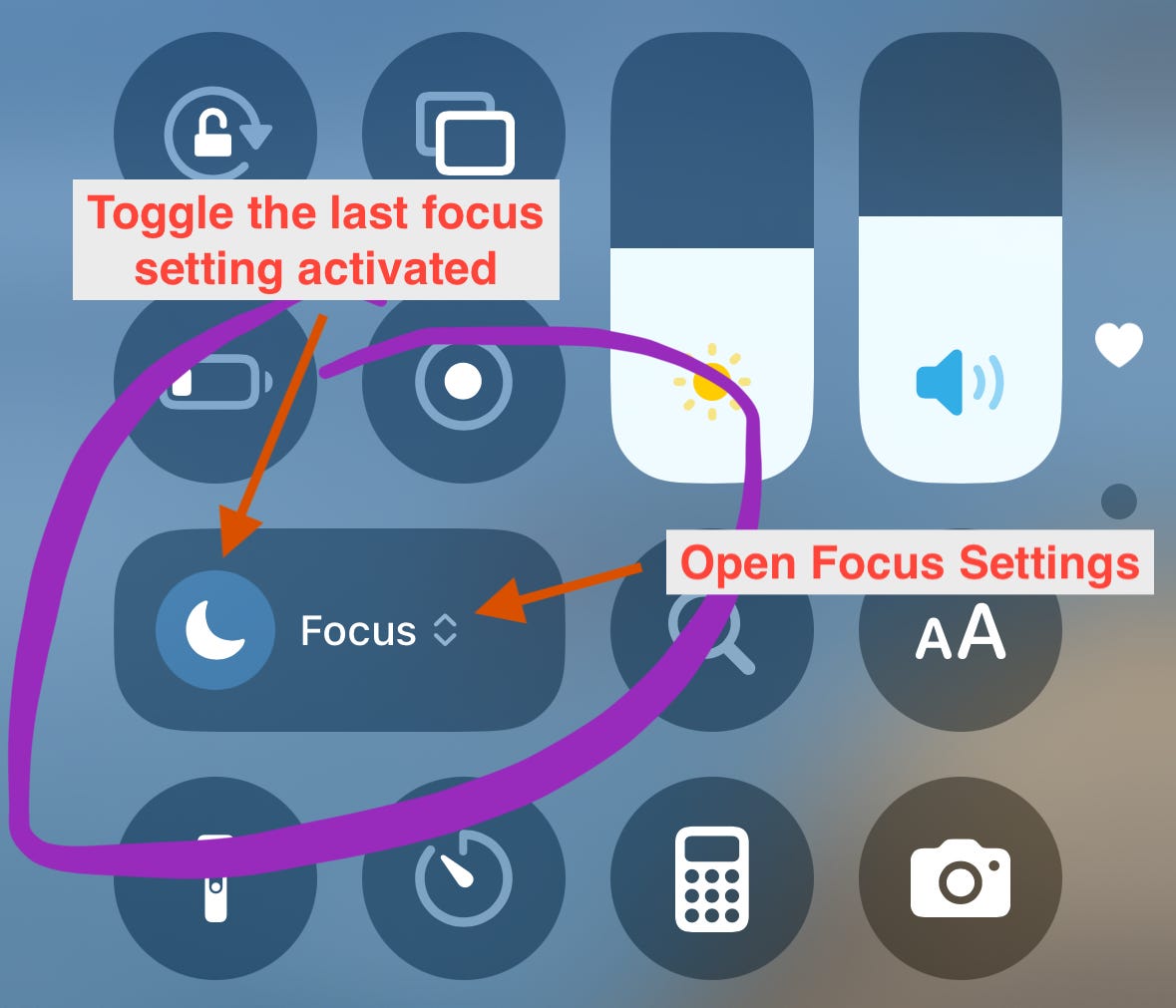
The focus control in Control Center has 2 buttons. One is the image of the moon/bed/etc for whatever focus you last selected. Tapping that directly will turn on and off that focus without any frills.
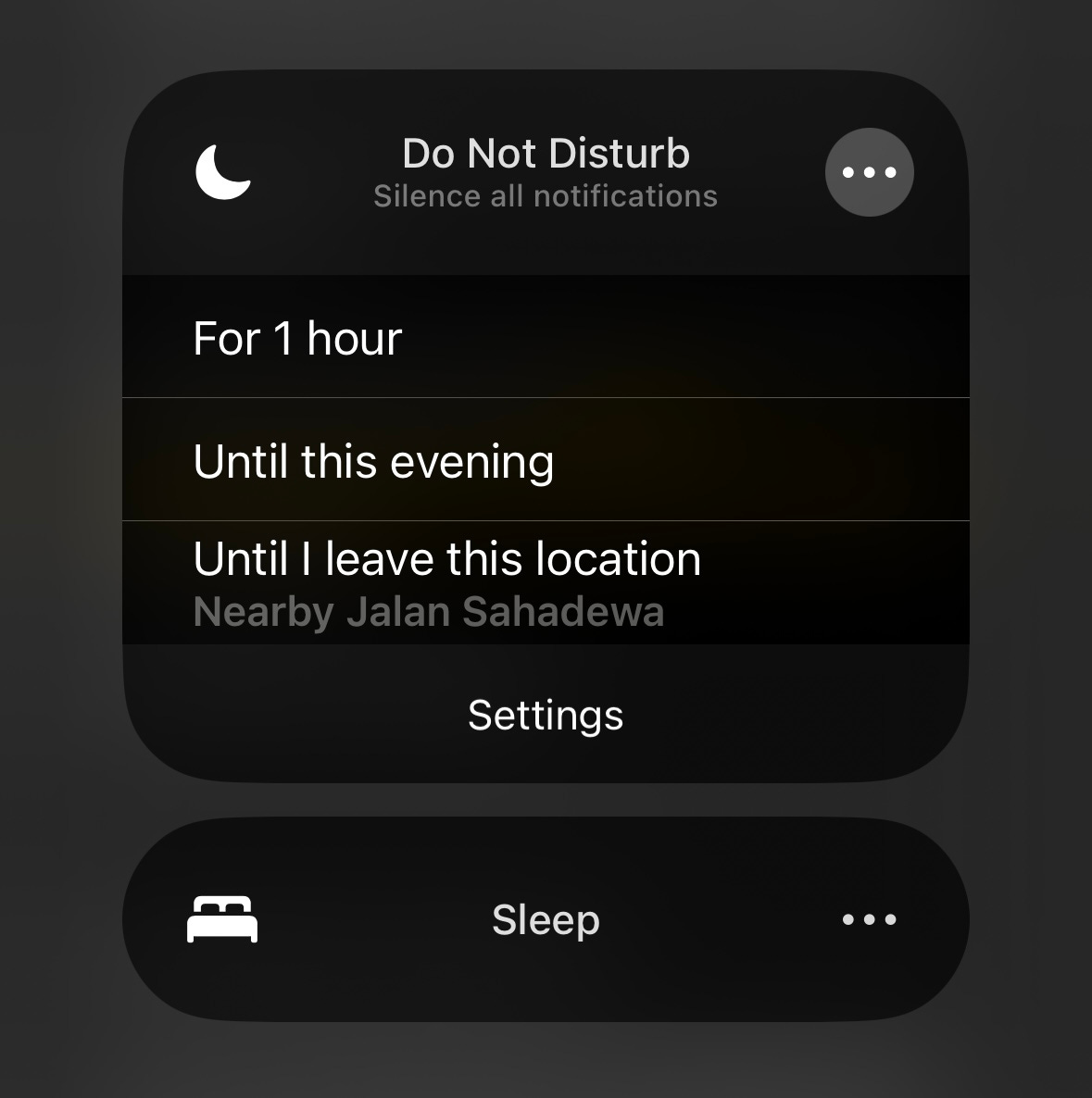
If you touch the Focus text instead, it will open the more detailed view of all your focus types (shown below). From here you can turn them on and off or select the ellipsis to turn it on for shorter durations and get to the focus settings. This is where you’ll go to tailor these settings to your liking.
My iOS Focus Settings - Keep it Simple
Do Not Disturb: only allows phone calls (even a single call) and Time Sensitive Notifications from all apps, and a few apps with specific notifications privileges.
One of the novel things I do with my focus settings is that my Do Not Disturb setting allows phone calls. I don’t get many phone calls, and when I do it’s either spam (unfortunate, but easy to ignore) or someone who wants to know something in a time sensitive manner. Because of the low volume, it’s not a big deal. Similarly, if you don’t get many notifications, you don’t really have to worry about blocking them. It’s only when they get overwhelming that you need to start putting up some limits.
Sleep: only allows repeated phone calls (when the caller calls twice in a row). That’s all, full stop. My sleep is important and the only thing that will interrupt me is important phone calls from individual humans. You could probably add an allowed list to limit this even more, but I find that I never get random/spam calls twice in a row so that’s not a problem, and I’d like to be able to accept unknown numbers that could still be from a loved one. I’ll also use this Focus setting during the day when I want more serious Focus time.
Airplane mode: worth mentioning that even though I have a Sleep focus, I usually just put my phone on airplane mode to fully block everything and save battery life. Note that some notifications from apps that have offline functionality (calendar, timers, alarms, etc.) can still get through this, so be aware. Sometimes I’ll turn on Airplane mode & Sleep Focus if I want to be 100% sure everything is blocked without just turning off the phone.
Let’s Get Focus Set Up!
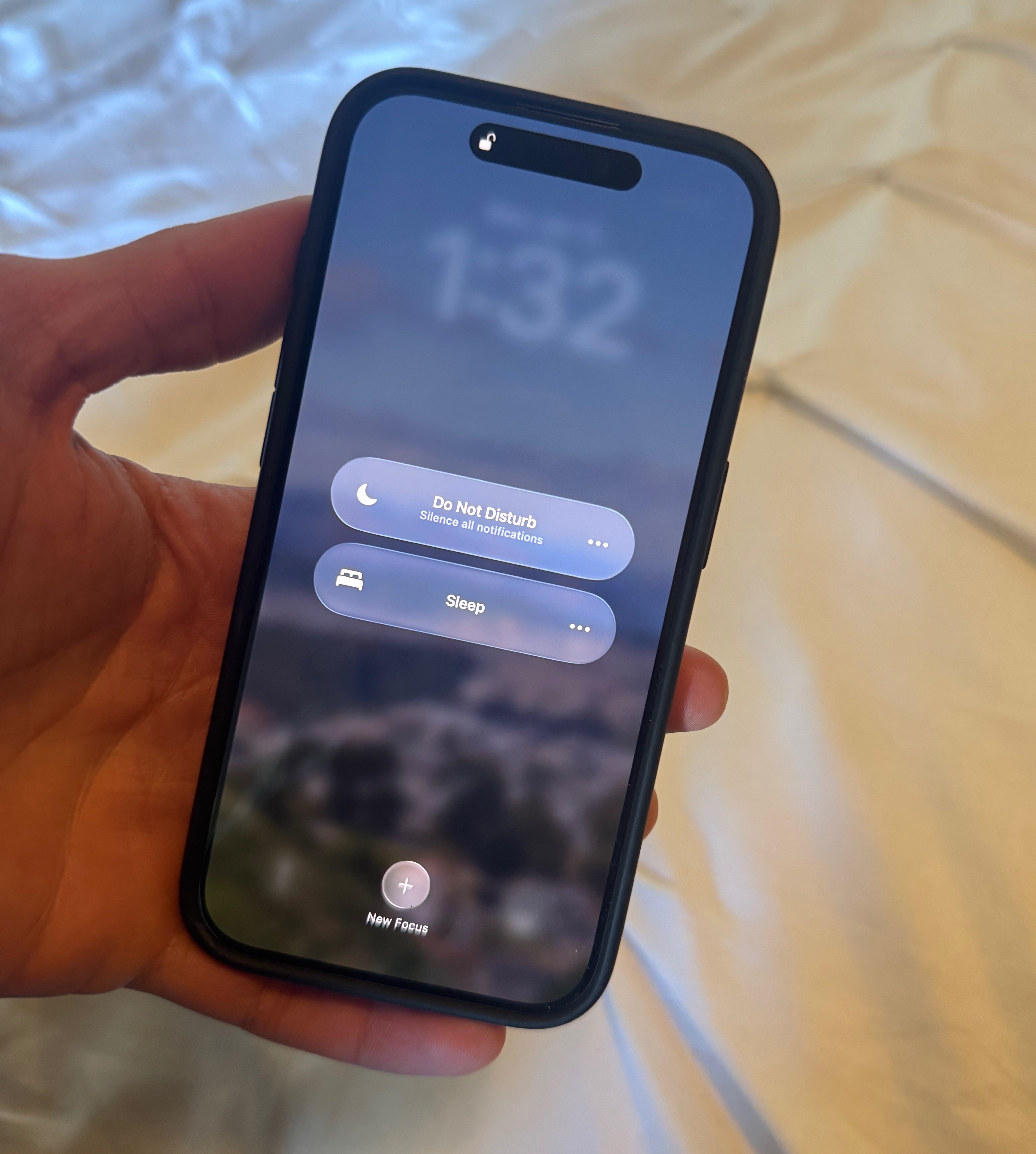
The first step is to reduce the number of Focus settings you have. If you haven’t ever touched these settings, you may have among others:
Do Not Disturb
Personal (what is this really?)
Work
Sleep
Reduce Interruptions (via Apple Intelligence)
I personally don’t understand the difference between Do Not Disturb & Personal. If I want personal time I’ll turn on Do Not Disturb. What happened to Apple’s focus on simplicity? I’d recommend you keep your Focus settings simple unless you have a specific use for something different.
I also don’t want to be interrupted any differently than Do Not Disturb while working, so I remove that one too.
I haven’t tried the Apple Intelligence Focus setting since I know what I want already, but if you’re unsure give it a try and see if works for you. There’s a Focus setting called Reduce Interruptions AND there’s a way to add AI to other Focus settings. It’s essentially the same thing but different ways of turning it on. I just think that’s confusing, so I got rid of that too.
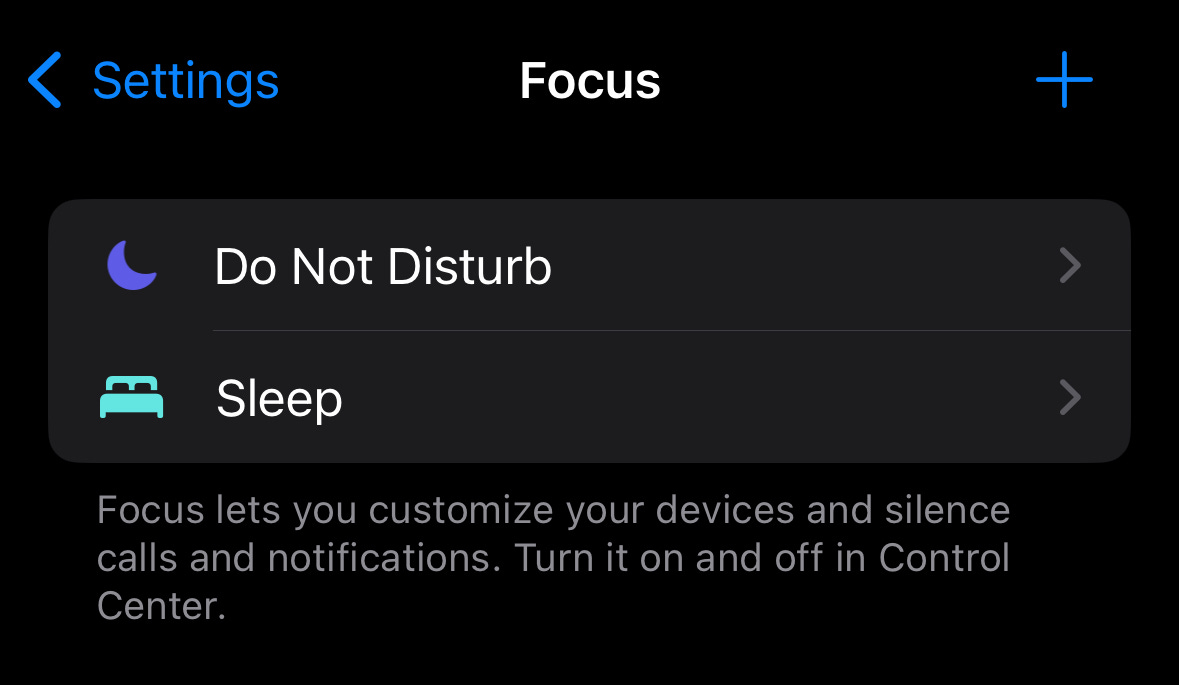
Whew, already it looks way better with just Do Not Disturb & Sleep. But unfortunately, the default settings for these aren’t set up well. I remember both Do Not Disturb and Sleep Focus letting through too much or too little before I customized it. I also realized that notifications were the biggest culprit of annoyance and phone calls were more welcome.
Do Not Disturb Focus Settings
Allow Notifications > People
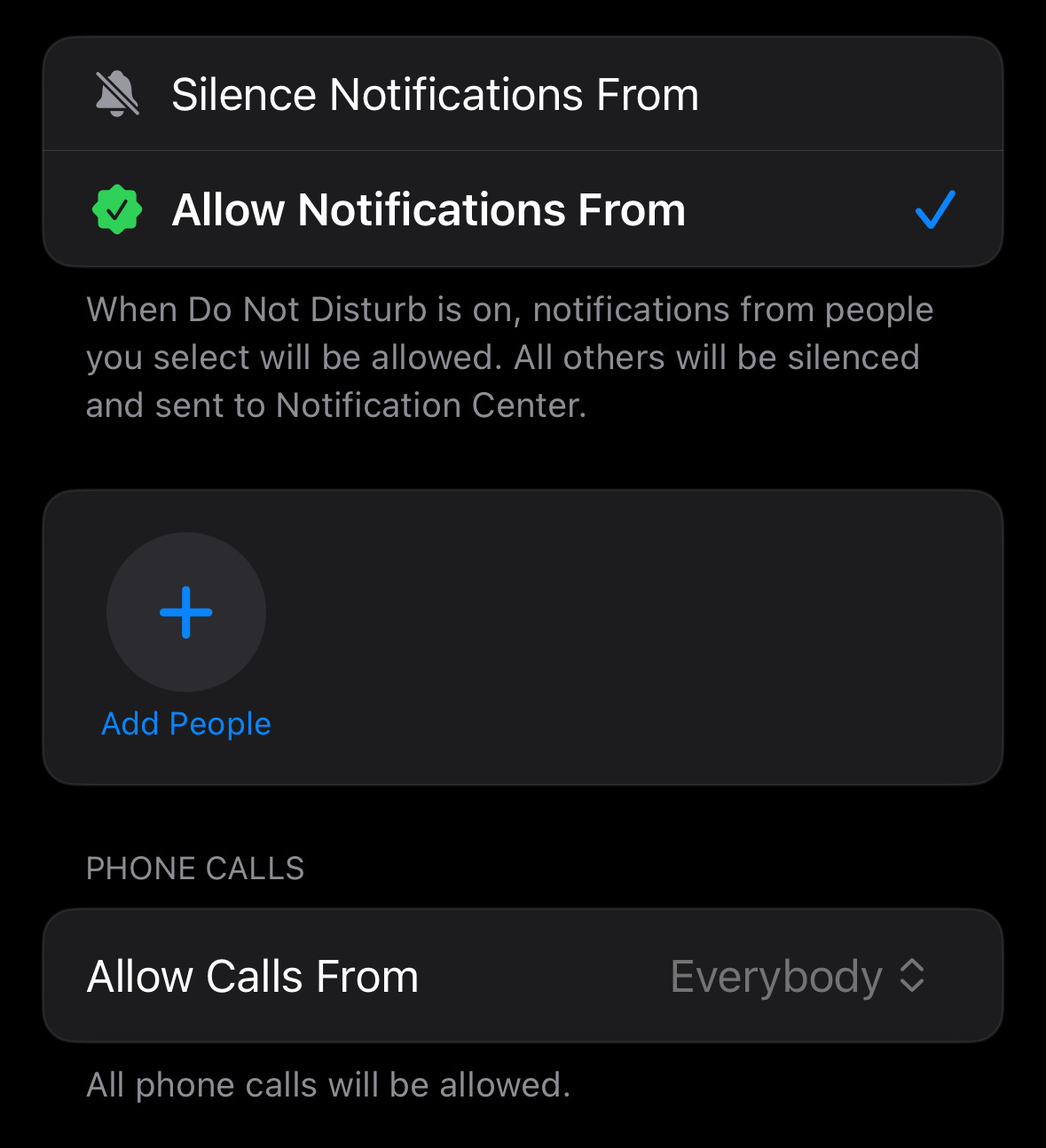
I have to say that I want to Allow Notifications From and then select no one. Then I need to Allow Calls From Everybody which is separate from the notification options.
Note: If you do add people here, it will allow messages from that person from whichever messaging app you happen to use. Messages, Whatsapp, Signal, whatever. I’d recommend you test this first of course, but you can also check by going to an app like WhatsApp and examining the contact card to make sure it corresponds to the same person.
Allow Notifications > Apps
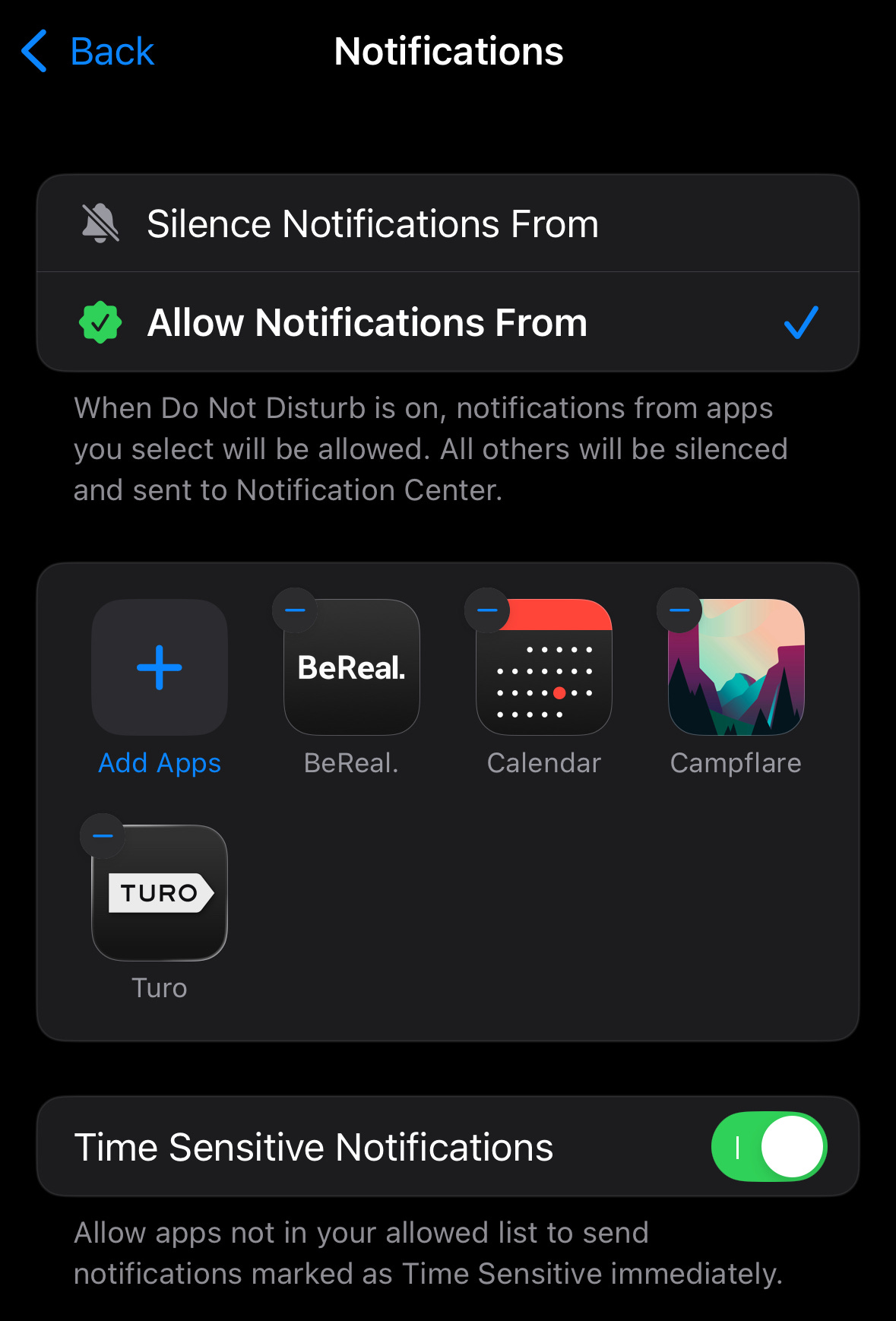
First off, I allow Time Sensitive Notifications. I find this is mostly true to its name and I get only time sensitive notifications that I want to interrupt me. You might not need to select anything else, but if you’re not sure or have other needs, I also set up specific apps to be allowed.
Here I need to Allow Notifications From and select any apps that I’d like to specifically allow. Here are some suggestions on the type of app that you may want to add here:
Calendar, since I want calendar reminders to interrupt me. These might be covered under Time Sensitive Notifications but I haven’t seen a downside so I have it here too.
Campflare for campsite cancellation notifications. If I don’t open these notifications immediately I could lose the campsite, so I want to be interrupted.
Turo/Airbnb hosting: if someone has an issue I want to know immediately. 5 star ratings are at stake!
BeReal: social media to post a photo at a random time each day. I ended up removing this app entirely since it was too many notifications to even have 1 a day, but you might be into this or another app that does something similar.
Not needed if you have Time Sensitive Notifications on:
Rideshare apps: Getting picked up by a rideshare is clearly a Time Sensitive Notification and will be covered if you have that setting turned on. If you add an app like Uber to your allow list then you might get interrupted by a stupid promotional notification, so Time Sensitive Notifications can make sure you’re safe while you’re in Do Not Disturb.
Note: If you added an allowed person in the Allow Notifications > People section, you don’t need to add any specific messaging apps to this section. If you add a messaging app here it will allow notifications from EVERYONE pinging you on that app, which is likely not what you want.
Do Not Disturb Options & More
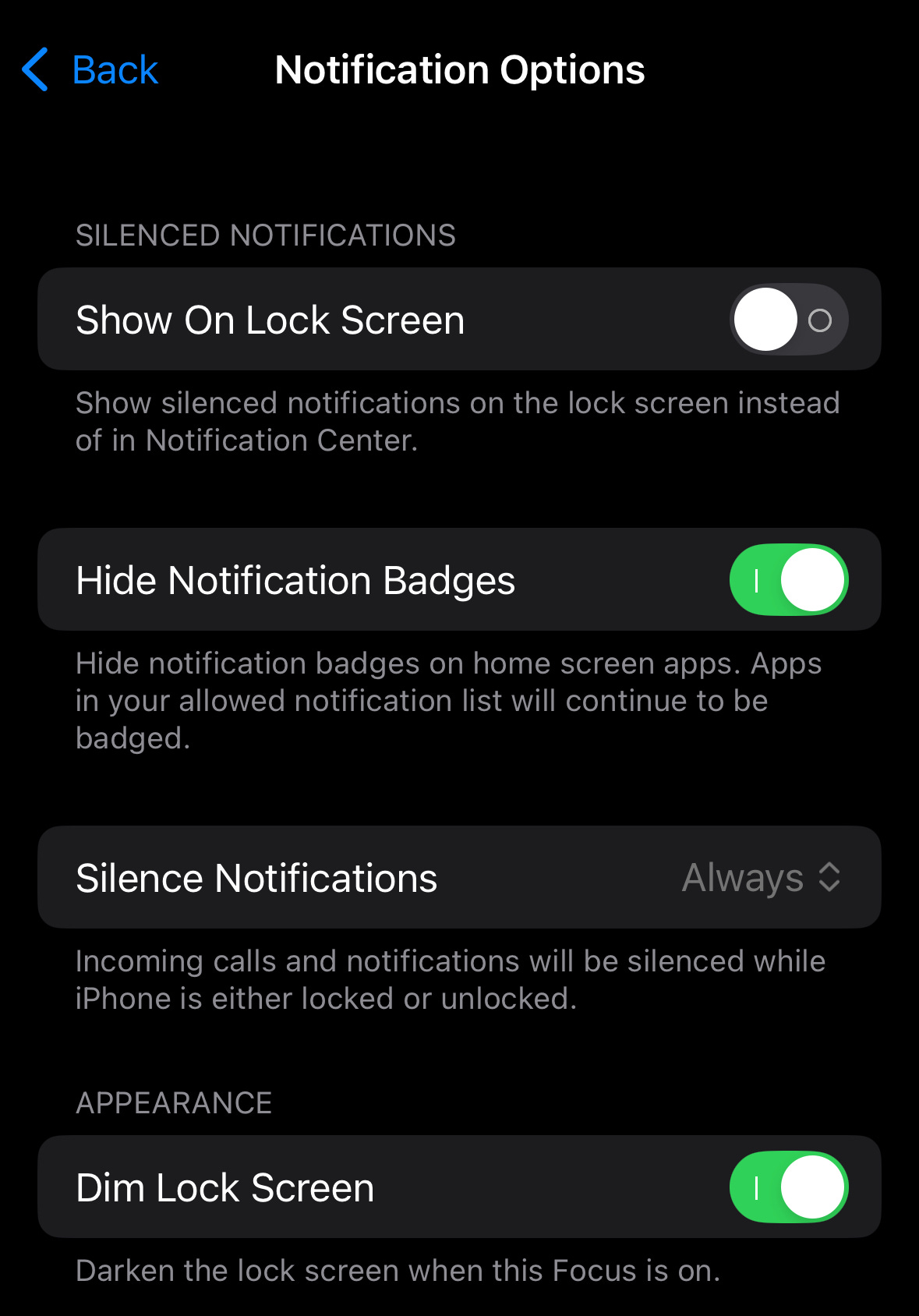
Underneath People & Apps settings you’ll see Options. Most are easy to understand, except for the Silence Notifications, which gives you the option to allow notifications when your phone is unlocked on in use. One of the reasons I use Focus settings is to stop notifications from popping up on my phone while I’m sharing my screen with others, so I keep it set to Always.
Farther down in Focus settings are more things that I don’t use too much, but can be helpful. I’ll talk about those more after showing you my Sleep Focus settings, of which I use during the day for a more intense Focus type!
How to Set up Sleep Focus Settings
While I like to use the Sleep type of focus for this, you can also use another Focus type that fits the vibe of what you want for this more intense Focus type. The Sleep focus has extra sleep related features (that are sometimes annoying), but otherwise it’s just a matter of naming.
Allow Notifications > People
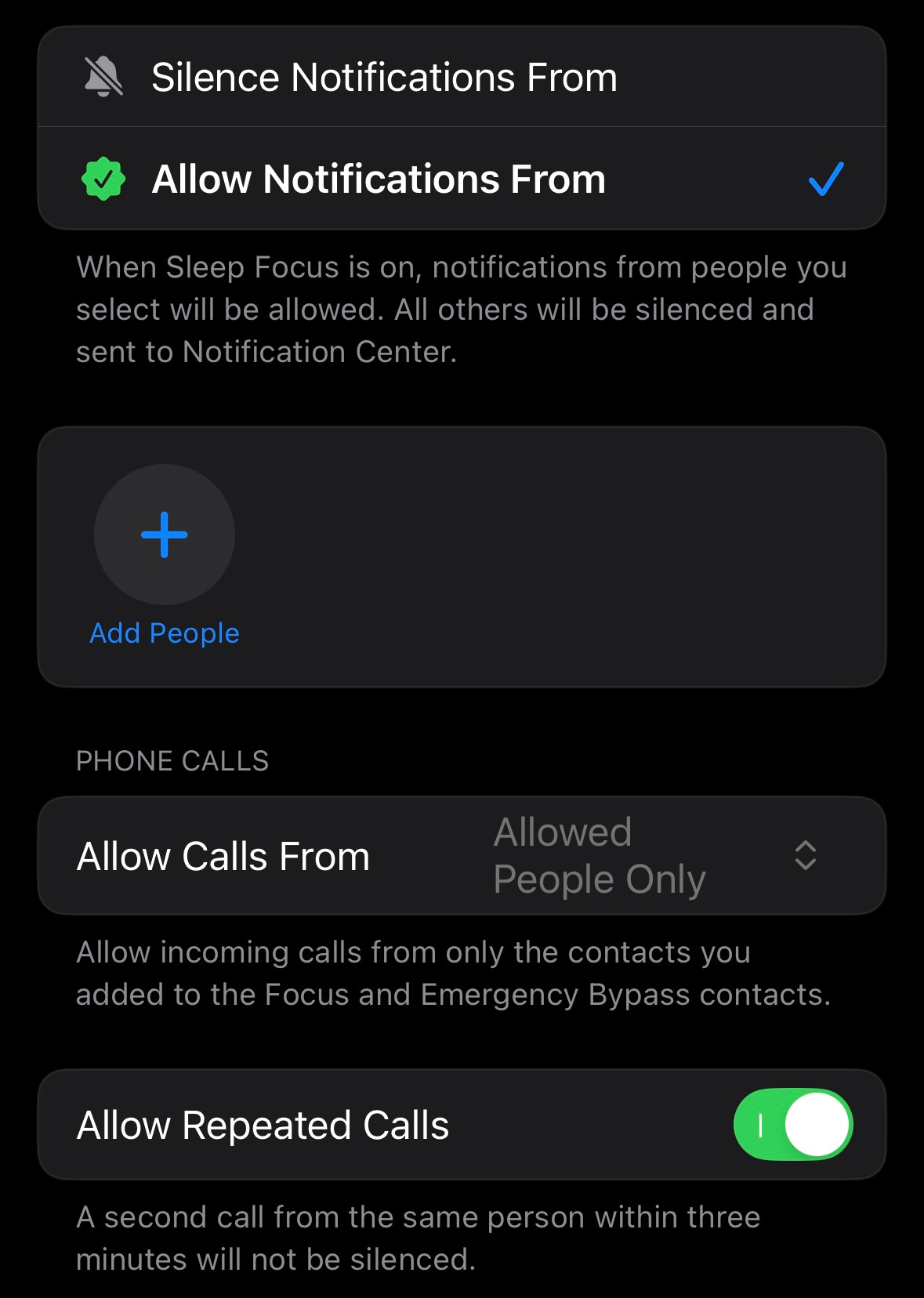
I want to Allow Notifications From and then select no one. Then I need to Allow Calls From Allowed People Only (which is a terribly roundabout way to say allow calls from NO ONE!), but then Allow Repeated Calls. Confusing? I think so!
This setting Allow Repeated Calls is another reason why you may have to call someone at least twice if you really want to reach them.
Allow Notifications > Apps
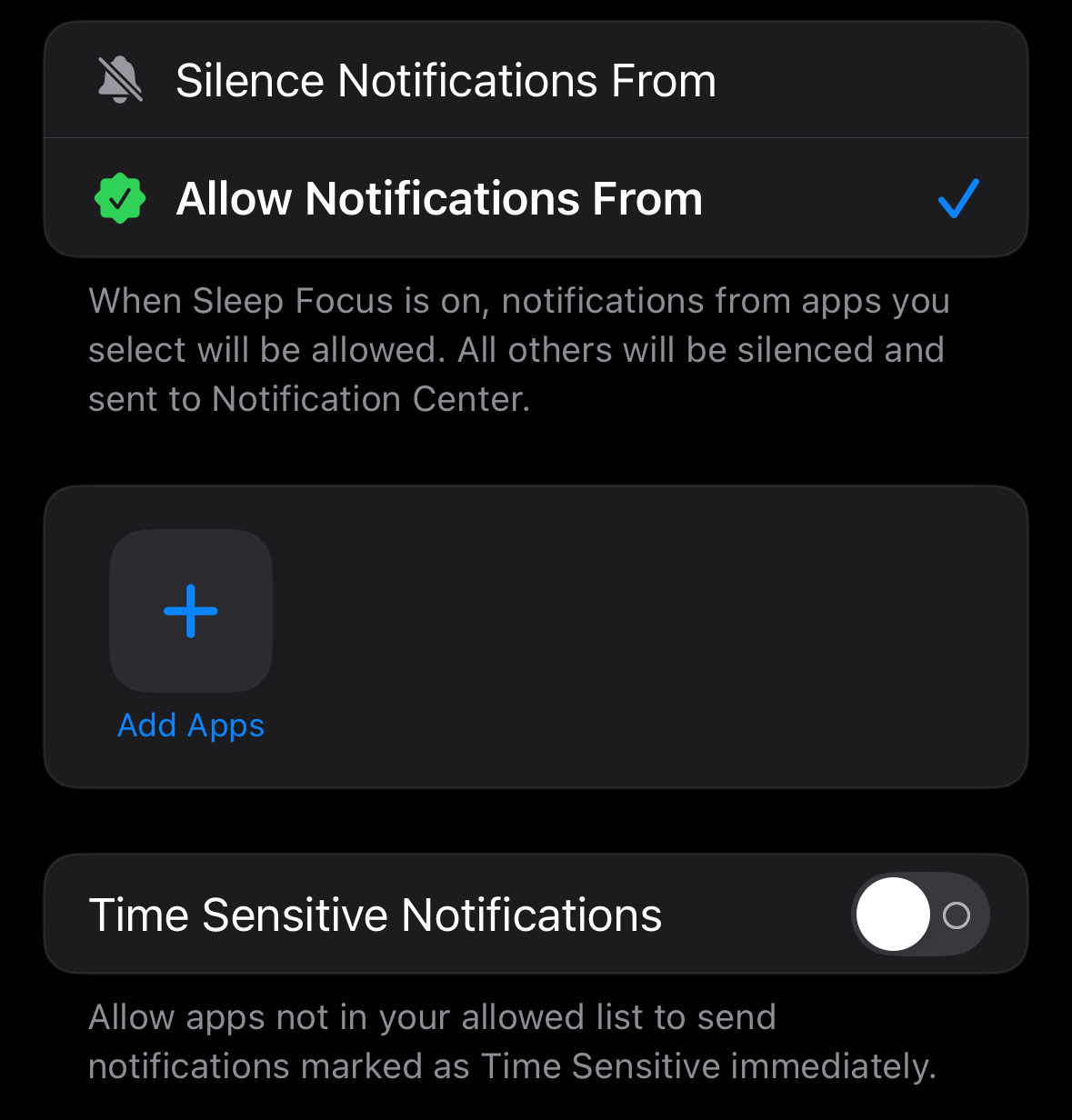
Nothing. Nada. Zilch.
Again I need to Allow Notifications From and not select anything as a roundabout way of saying NO NOTIFICATIONS! Then make sure to turn off Time Sensitive Notifications if you so desire. I’d guess you wouldn’t get many Time Sensitive Notifications in the middle of the night, but I have it off since I sometimes use the Sleep Focus as a general way to more fully block everything during the day as well.
In a way, my Sleep Focus is what the old Do Not Disturb used to be. Block absolutely everything except repeated calls. Then I have my Do Not Disturb Focus with more specificity.
Sleep Focus Options
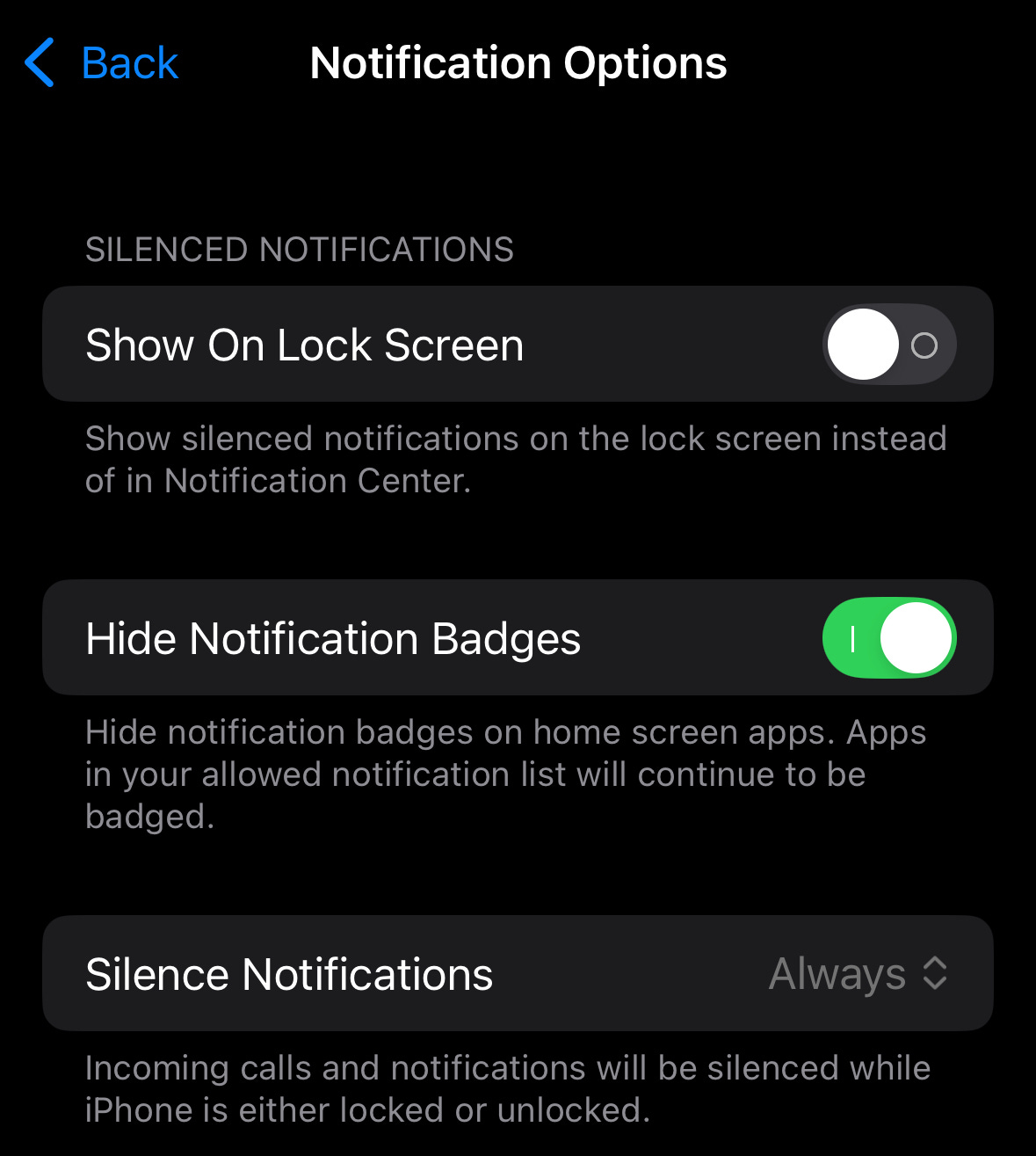
Sometimes I’ll be using my phone to play sleep audio and I don’t want to be distracted by notification badges.
Custom Screens, Schedules, & Focus Filters
Beyond the standard options, there are a few more things you can do for your Focus settings.
Customize Screens can indicate that you’re in a specific Focus type. Instead of using Customize Screens, I have my home screen dimmed in Options settings so I don’t get distracted by beautiful pictures. Sleep Focus has extra options in Customize Screens and a Sleep Screen.
Schedules can help turn on and off your Focus settings automatically. I prefer to keep my Focus settings fully controlled by me, so I have no schedules set.
BEWARE of the Sleep Focus being synced incorrectly with your sleep schedule in the Health app. Scroll down to the bottom of Sleep Focus settings and make sure the schedule is what you want. Go into the schedule and make sure to turn off Schedule if you don’t want Sleep Focus turning on and off via the Health app sleep schedule without your consent. Sometimes this stuff is set by default when I’m helping people optimize their focus settings.
There’s even a bug in Control Center that says the sleep focus will be turned on automatically even when I turn all the scheduling off! What a bummer, even Apple engineers are confused.
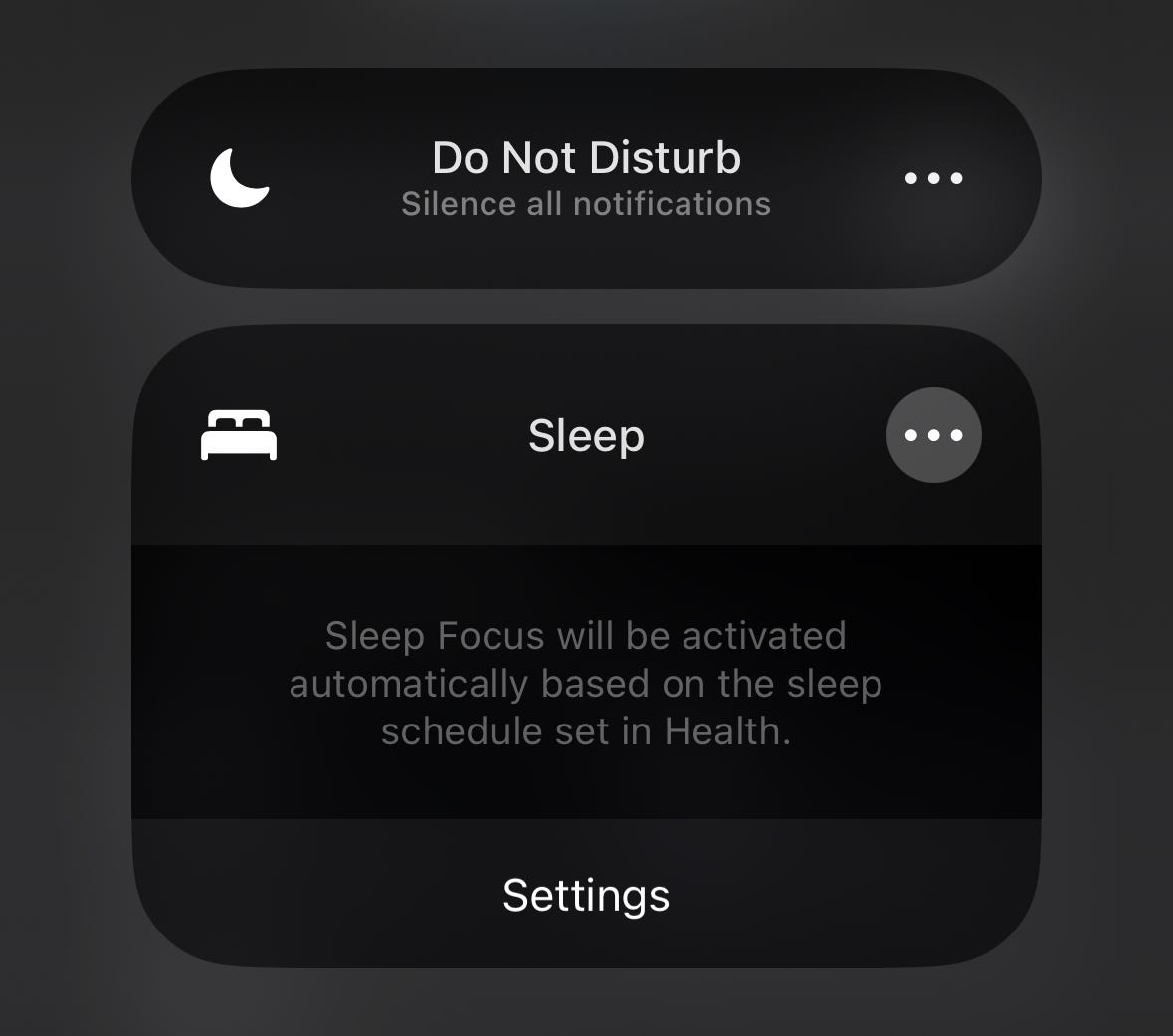
Since I’m using Sleep Focus sometimes during the day as a more strict version of Do Not Disturb, plus I have an inconsistent sleep schedule, I don’t want Sleep Focus having any kind of schedule except when I turn it on and off.
Focus Filters would be useful if more apps supported them, but most apps don’t support them. The $$$ incentives don’t line up, but maybe someday. What kind of schedule or focus filter do yo use?
Take Control of your Notifications
Congratulations for taking control of your notifications. I wish I didn’t have to write this, but with the great power of notifications comes great responsibility and possible confusion. Let me know how you set up your Focus settings!